
AurexTv Installation Guide
Step-by-step instructions for all devices. Select your device below.
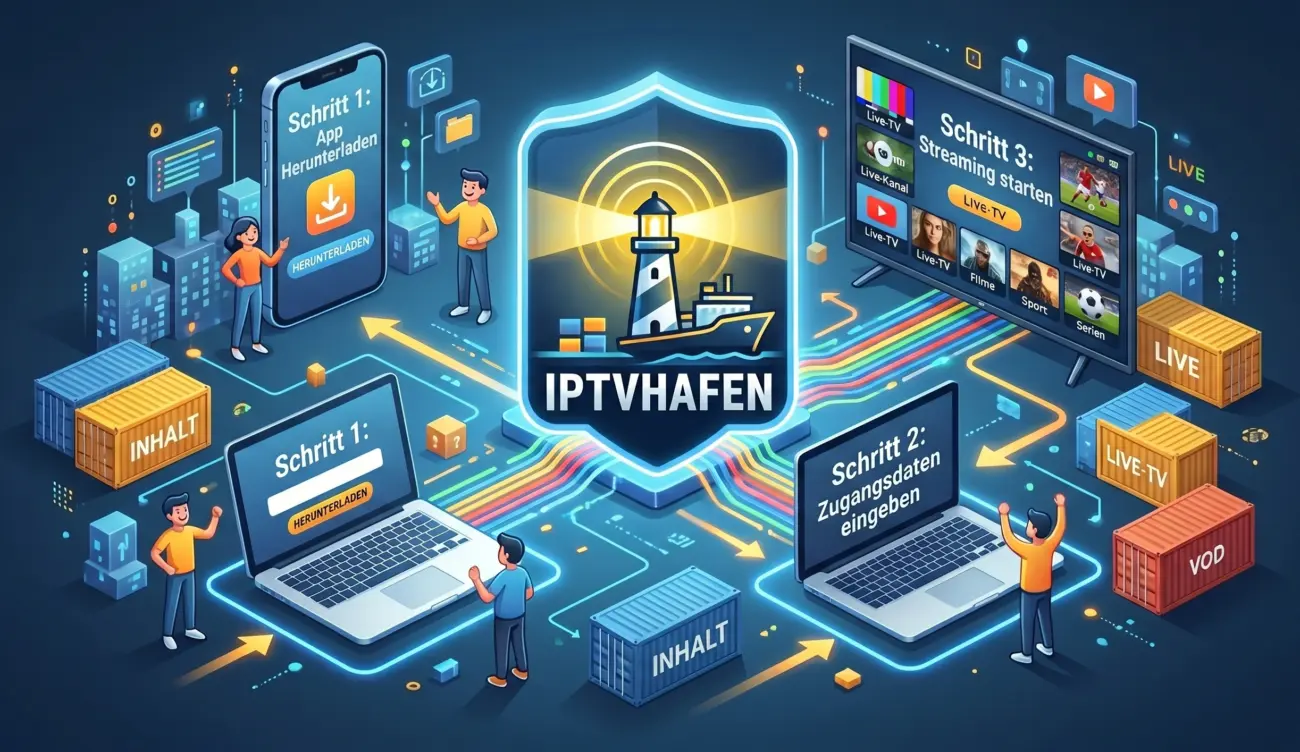
AurexTv Installation : The Ultimate Guide to Installing IPTV
First, select your device and scroll down. There you will find complete instructions to help you activate your subscription.
Amazon Firestick
Fire TV / Firestick 4K / Fire TV Cube
Android TV
Android TV / Box / Tablet / Phone
iPhone / iPad
iOS via App Store
Smart TV
Samsung / LG / Sony
Windows / Mac
PC / Laptop
MAG Box
MAG 250/254/256/322/324
Apple TV
tvOS 4th gen and newer
Formuler / Z
Formuler Z-series / Dreamlink
1 Open Your Smart TV App Store
For Samsung: open Samsung Smart Hub. For LG: open LG Content Store. For Sony: open Google Play Store.
2 Download the Right IPTV App
Search for "Smart IPTV" (SIPTV) for Samsung/LG, or "IPTV Smarters Pro" for Android TV (Sony/Philips). Smart IPTV is a popular choice for Samsung and LG TVs. For setup help, refer to Samsung's official support page.
3 Activate the App (Smart IPTV)
Open the app. Note your TV's MAC address (found in the app). Send this MAC address via WhatsApp to our support. We will activate the app for you. One-time activation fee is covered by us.
4 Add Your Playlist
After activation, you can add your M3U link or Xtream Codes through the app or the app's website. Follow the instructions in the app.
5 Done!
After activation, you can watch all channels directly on your Smart TV.
Note: Some Smart TVs require a separate IPTV app. Contact support if you need help with installation.
Pro Tip: For the smoothest experience, connect your Smart TV via Ethernet. WiFi may cause buffering with 4K streams.
Need hands-on help? Contact our 24/7 WhatsApp support — we guide you step by step.